If your Android device doesn’t have enough internal memory to store all the apps you need, you can use the SD card as internal storage for your Android phone. A feature called Adoptable Storage allows the Android OS to format an external storage media as a permanent internal storage. The data on the adopted SD card is encrypted and it can’t be mounted on another device.
D Cards are very handy option to store photos, songs, and videos. Even if you have a hefty amount of internal storage on your Android phone, you might need that piece of memory to store lengthy videos shot on your phone’s high-resolution camera. But there is one thing where SD cards fall short, installing apps.
Android still installs the apps on the internal memory and dumps the data on the SD card. So, you are deprived of installing any further apps if your phone has a scarcity of internal storage, like in the case of Android One devices.
What is an Adoptable Storage?
There is a feature on Android called Adoptable Storage. It allows a removable microSD card installed on an Android phone to be used as the internal storage. This way you can cross the space hurdle if the phone has a low internal memory.
Google introduced Adoptable Storage with the release of Android 6.0 Marshmallow. Methods to do the similar task existed earlier. However, they weren’t easy to implement.
Some important things to consider
While adopting a storage, whether an SD card or USB drive, Android formats and changes it’s FAT32 or exFAT format to ext4 or f2fs. Using your SD card as an internal storage might sound good to your ears. But everything comes at a price and so does the adaptable storage feature. Here are some pros and cons:
SD cards are slow
This is the painful reality of these tiny memory chips. Even though they can store tons of data, they’re slower than the internal storage and have a limited number of read-write cycles. Using SD card as a permanent storage would require more frequent read/write operation, and it would degrade its performance over time.
Android does a performance benchmark of your SD card to make sure it’s fast enough to match the internal memory. It warns about the performance of the external storage and may even decline to adopt if the SD card is extremely slow.
Your Android will literally adopt the storage
Android encrypts the external SD card being used as an internal storage, thus, it gets tied to a specific Android device. The key used to encrypt the data on the SD card is stored on the Android device’s internal memory. So, it is not possible to mount an adopted storage to another device because of its encrypted nature.
However, you can remove the storage from your device and put it back on. The device will remember the details about the apps installed on the adopted SD card to reverse the settings with the adopted storage is connected later on. This way you can use another SD card also.
Always make sure, you don’t remove the adopted SD card without following the unmount procedure, otherwise, the storage media might get corrupted.
You can’t install every app
Practically, Android allows you to install almost every app on the adopted storage. But it also requires the consent of the app’s developer. He has the freedom to enable or disable support for adopted storage in the app by adding relevant attributes in the code.
How to use SD card as internal storage on Android?
Configuring your SD card to behave as the internal storage on Android is a simple process. Please note that your SD card would get formatted during the process, do remember to backup your data.
It might be possible that the option is not present on your device even if it is running Android 6.0 and above. The device manufacturer may have disabled the feature. However, command-line methods exist which allow you to force a device to adopt a storage.
Here are the steps to adopt your SD card:
Here are the steps to adopt your SD card:
- Put the SD card inside your Android phone and wait for it to get detected.
- Now, open Settings.
- Scroll down and go to the Storage section.
- Tap the name of your SD card.
- Tap the three vertical dots on the top right corner of the screen.
- Tap Storage Settings.
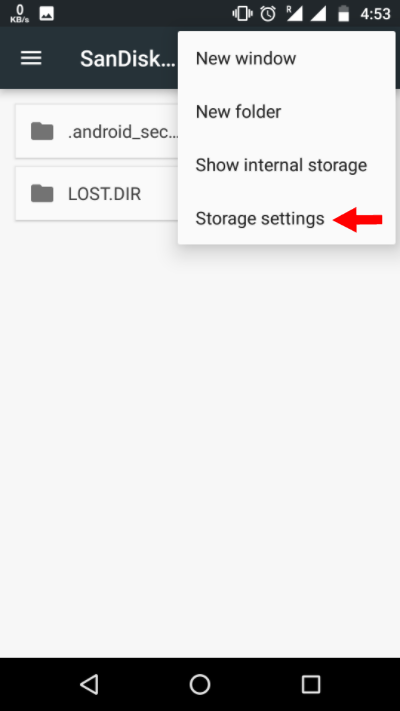
- Choose format as internal option.
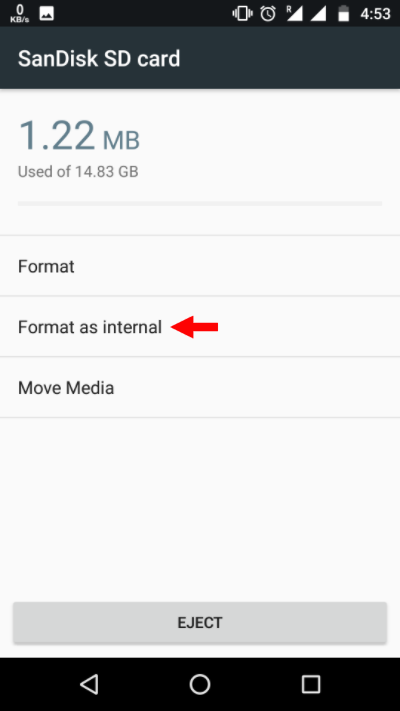
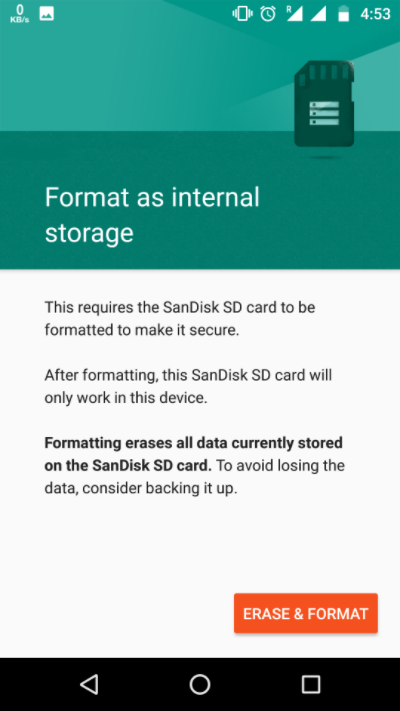
- On next screen, you have the final chance to decide whether you want to change your mind. Tap Erase & Format if you want to format your SD card as internal storage.
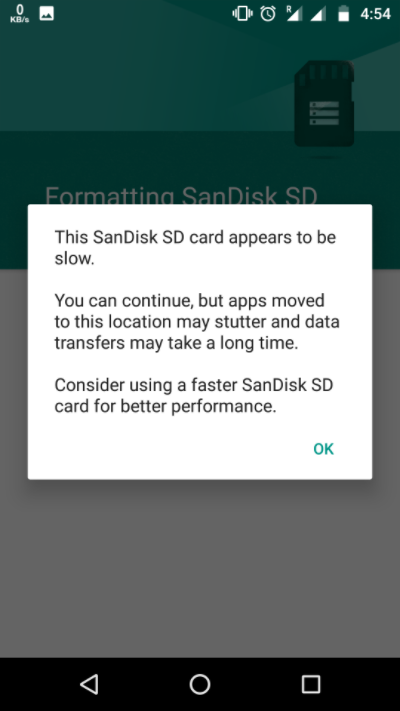
- You will be notified if Android finds that your SD card is slow. Tap OK to continue.
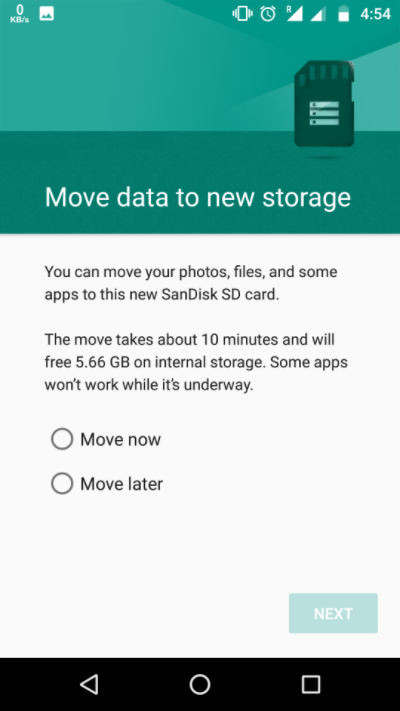
- You can start the data migration process now or do it a later stage.
- Tap Done to finish storage adoption process for your SD card.
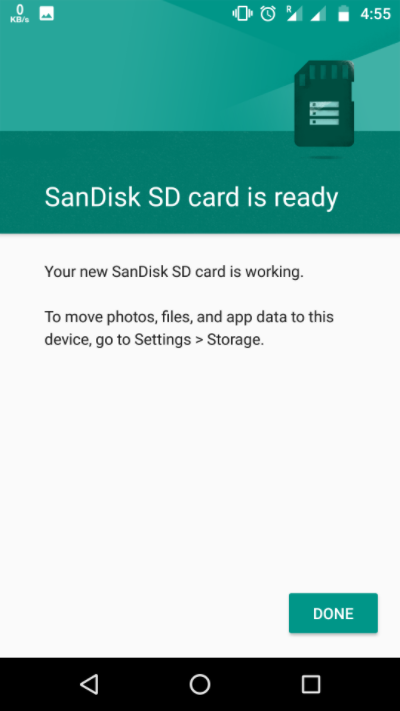
After the format process completes, you have the freedom to use your removable SD card as a ‘somewhat’ permanent storage. But keep in mind, it’s not hot swappable like the portable SD cards. So, don’t remove it without using the Eject option. Moreover, you can practically remove the adopted storage but it is not recommended as it may cause errors on the device.
How to make the SD card portable again?
If you want, you can roll back the changes later in time by following the same steps:
- Follow the method mentioned above till Step 4.
- Tap your SD card.
- Tap the three dots on the top right corner of the screen.
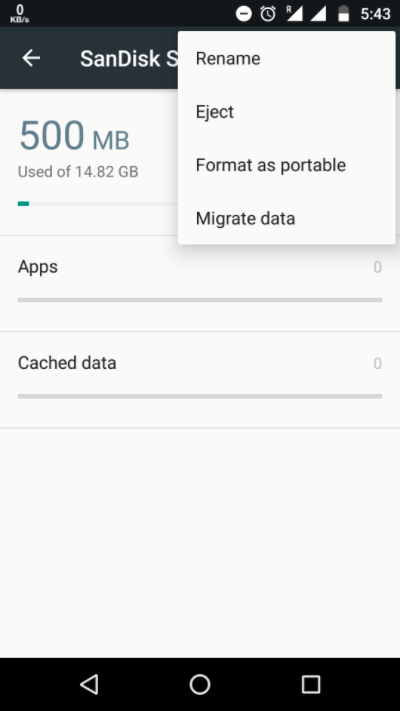
- Tap Format as internal.
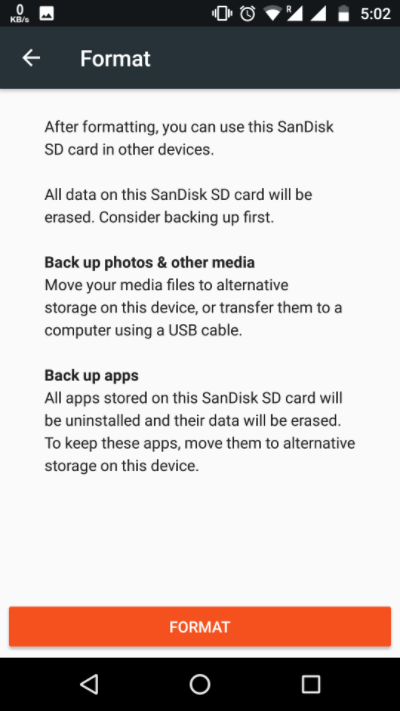
- Tap Format. The process will take around a few minutes to complete.
Now, you can use the SD card as portable storage and mount it on any other Android device.
Note: The post has been updated to include that manufacture can disable adaptable storage feature on their devices.
Did you find this helpful? Drop your thoughts and feedback inside comment section.
Comments
Post a Comment