

In this article, I’ll be telling you how to search and download torrents using terminal via Torrench.
What is Torrench? — Brief Review
Torrench is a command line-based tool that can be used to search and download torrents from different torrent-hosting websites. This torrent search tool isn’t limited to Linux–it’s available for Windows and macOS as well. On a side note, Torrench is a combination of words Torrent + Search.
Torrench lets you search and download a torrent file from the internet. Its sources are mentioned below. The developers of Torrench have promised to add more websites to this list.
- Linuxtracker
- DistroWach
- The Pirate Bay
- KickassTorrents
- SkyTorrents
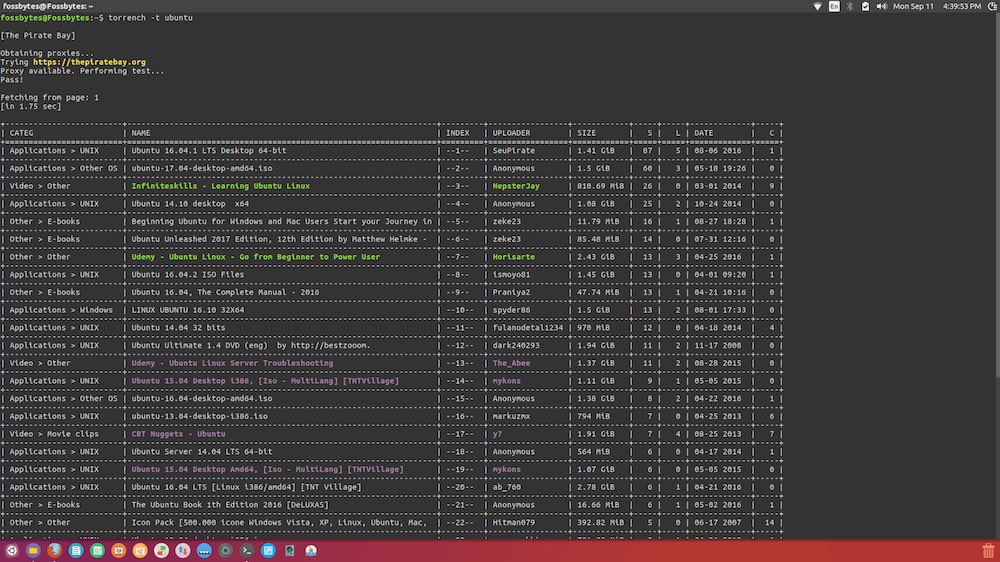
It goes without saying that popular torrent websites like KickassTorrents, SkyTorrents, The Pirate Bay, etc., are widely used to download illegal media. Upon doing so, a user can end up inviting trouble. So, by default, the developer has disabled the searching on these websites using Torrench. However, you can enable it as told in the steps mentioned ahead in the tutorial.
How to install Torrench on your device?
For installing Torrench to download torrents using terminal on macOS or Linux, you need to have Python 3 pre-installed on your machine. If you’re running newer/updated release of Python, Python 3.x would be already installed on your computer. For Windows, no additional package is required to be installed.
Torrench installation on Linux and macOS
In Ubuntu, Fedora, SUSE, etc., users can install Torrench using pip. In case pip isn’t installed, here’s how you can do it on Ubuntu or apt-based systems. Similar commands can also be used to install Torrench on macOS.
After that, you can install Torrench using pip by running this command:
Note: The above step should install Torrench successfully on your system but I faced a little problem. As I ran a torrent search, it gave an error “ImportError: No module named configparser.” Upon looking the log, I found that the package was probably getting installed using Python 2.7. So, I ran the following command to fix this:
Alternatively, you can use python-setuptools for building from the source.
Torrench installation on Windows
Installing Torrench on Windows is pretty straightforward. Simply download the .exe file using this link and install it.
How to configure Torrench on your device?
Configuration on Linux devices
To finish the Torrench configuration to download torrents using the terminal, you need to put a config.ini file in $HOME/.config/torrench location. Download the file from here. Copy the file as follows:
In case the path is not defined, you can create the directory using this command:
Configuration on macOS devices
In macOS, you can copy the config.ini file in $XDG_CONFIG_HOME/torrench/ folder as follows:
In case, If $XDG_CONFIG_HOME is not defined, make torrench directory by this command:
Configuration on Windows devices
First, you need to create the required directories. Take a look at this path and create the absent directories: C:\Users\<user>\.config\torrench\
After that copy the config.ini file to this path. That’s it.
How to use Torrench to search and download files?
Before telling you how to use Torrench utility for searching torrent files and downloading them, let me tell you how to enable it. For doing so, open the copied-pasted config.ini file and set enable=1 at the end of the file. Now save and exit.
To use Torrench, you need to open terminal or command prompt and use torrench command followed by the search term. Let me show you how to do this. Additional features and arguments can be found here on GitHub page.
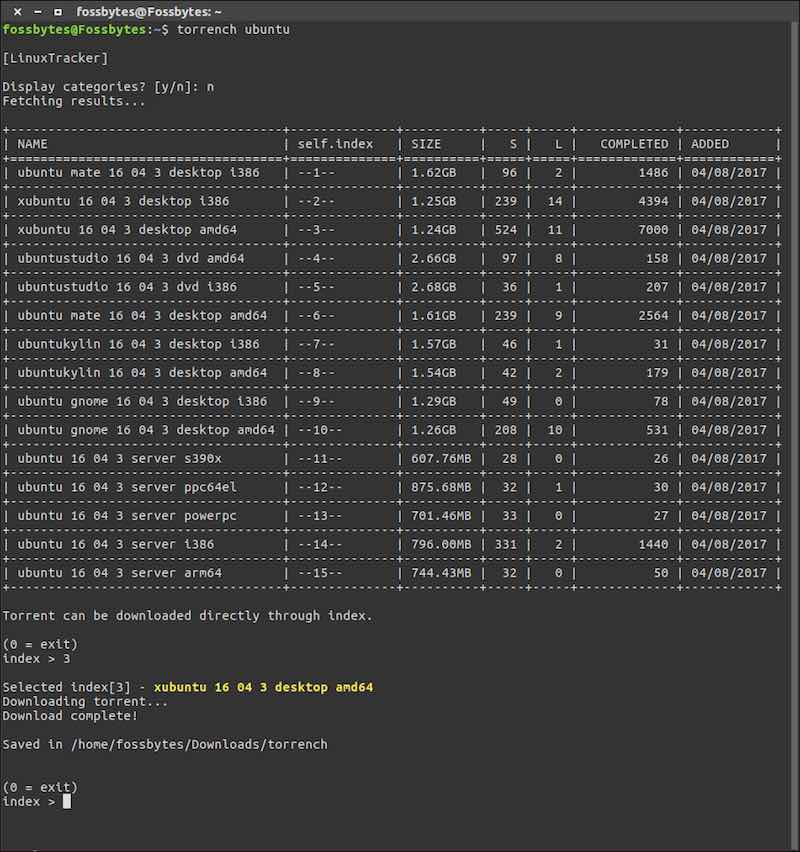
Searching LinuxTracker
It displays tons of Linux distros in organized and tabular form. You can also search using categories:
 Searching Distrowatch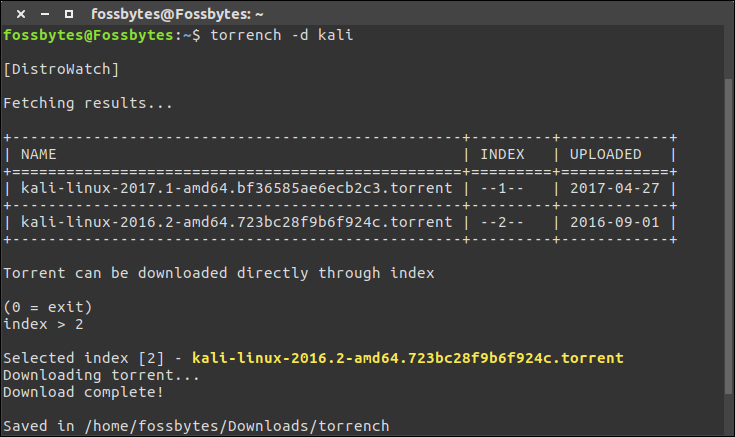
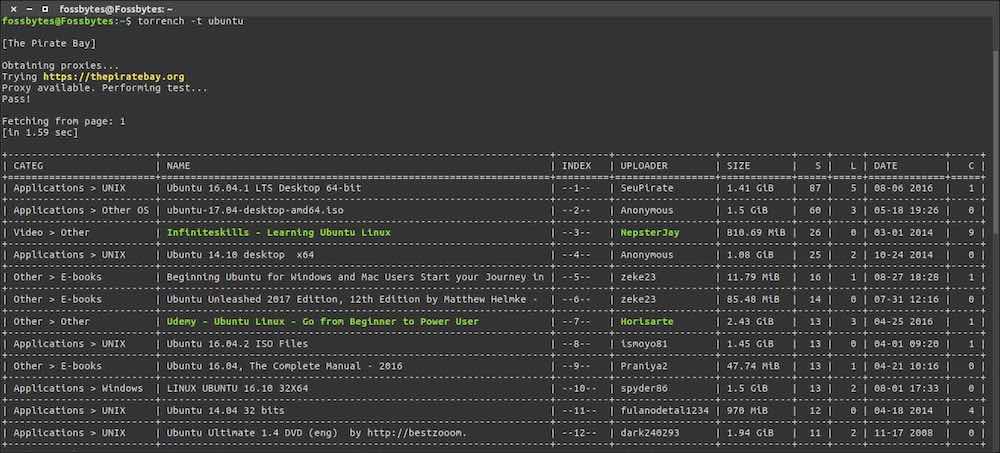
Searching The Pirate Bay
Searching KickassTorrents
Searching SkyTorrents:
Note: To search phrases, i.e., more than one word, you need to enclose your query in inverted commas, i.e., “SEARCH TERM”.
You can find more details and Torrench search tricks on this free and open source software’s GitHub page. Do use it to search and download torrents using the terminal and share your experiences with us.
Comments
Post a Comment